

Welcome to the SEEN:app Focus Group
Follow these simple steps to join your class and get started with SEEN:app
Fall 2026 Class Code
iPhone update: version 5.0.3
This update addresses sign-in loops, Face ID unlock, account restoration, and sign-out problems. Install version 5.0.3 or later from the App Store, then close and reopen SEEN:app. Continue with your existing account using the steps below.
Having trouble signing in or joining?1Download or Update SEEN:app
On your smartphone, visit the link below to download SEEN:app from the App Store (iPhone) or Google Play (Android).
go.seen.place/unkOpens the correct store for your device
Already have SEEN:app on iPhone? Use the same link to open its App Store page and install version 5.0.3 or later before joining.
Sign in to your existing account
Use the same method you used when you first joined: Sign in with Apple with the same Apple account, or email sign-in with the same email address. For email sign-in, request a new verification code and enter the newest one. Do not create a second account to troubleshoot.
Face ID unlocks SEEN:app on your phone; it is separate from Sign in with Apple. New to SEEN:app? Create your account and complete the initial setup.
2Navigate to "Join a Focus Group"
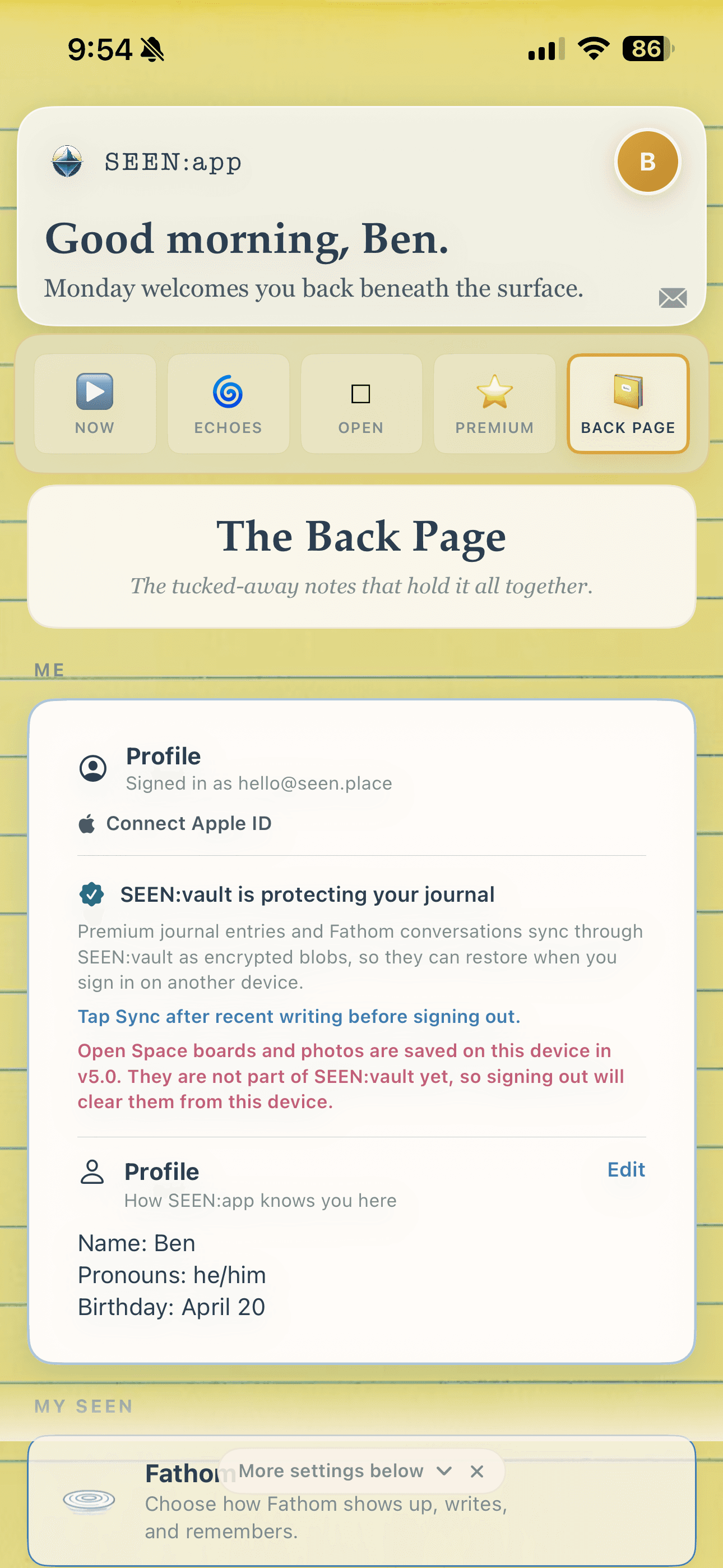
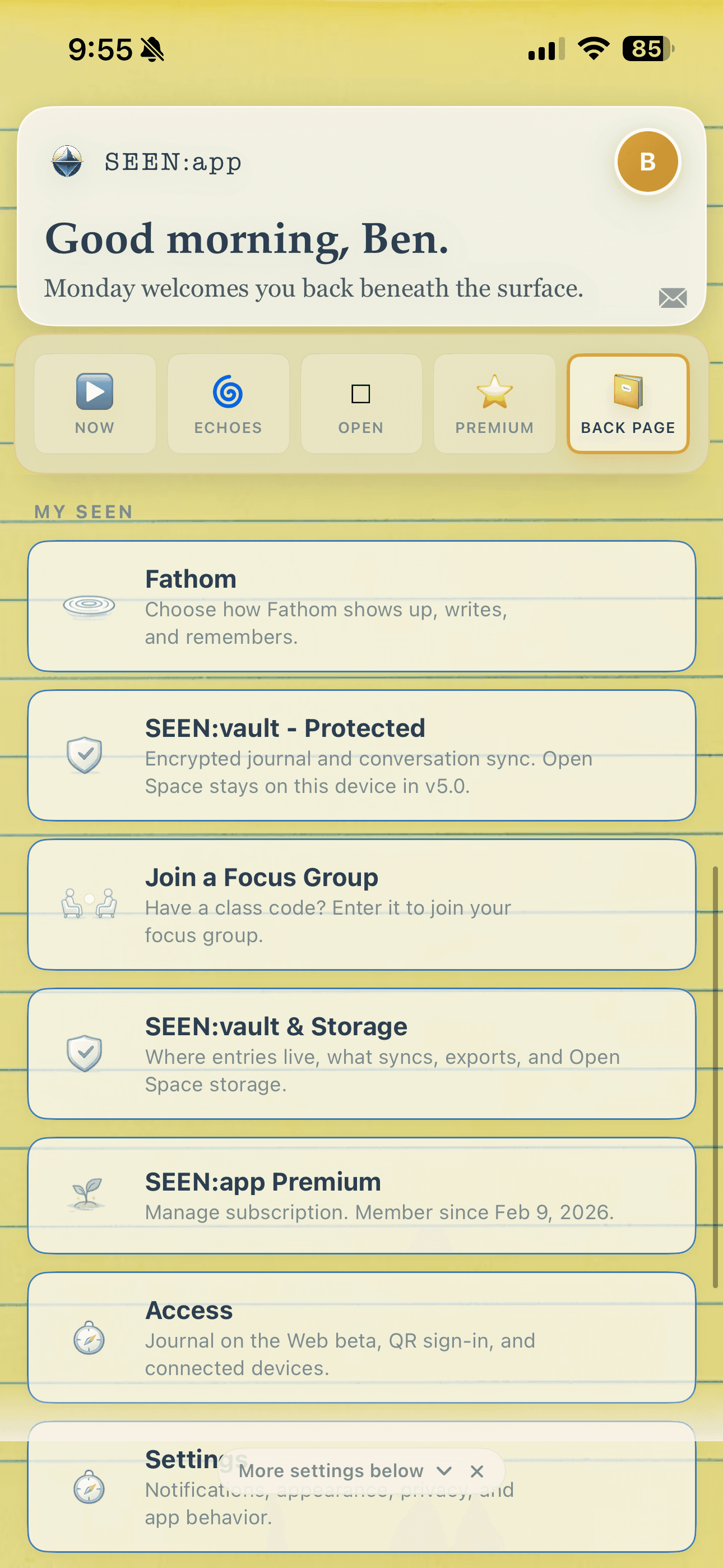
After opening the app and completing initial setup, open Back Page (the far-right tab). Scroll to MY SEEN, then tap "Join a Focus Group".
Android users: These screenshots show SEEN:app 5.0 on iPhone. Version 5.0 has not yet been released for Android, so your app will look and feel different. The current Android app still places Join a Focus Group on the Back Page. If you cannot find it, email Ben at ben@seen.place.
3Enter Your Class Code
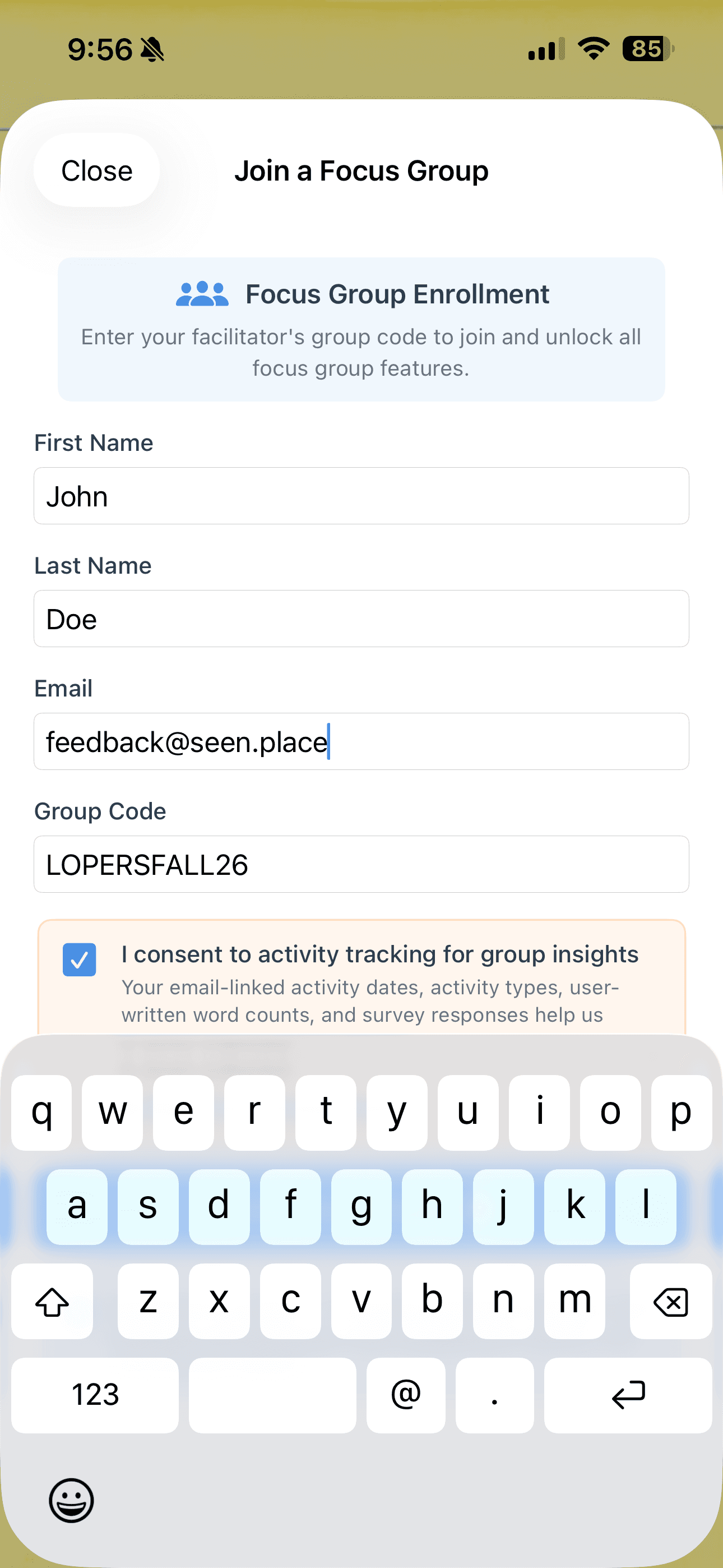
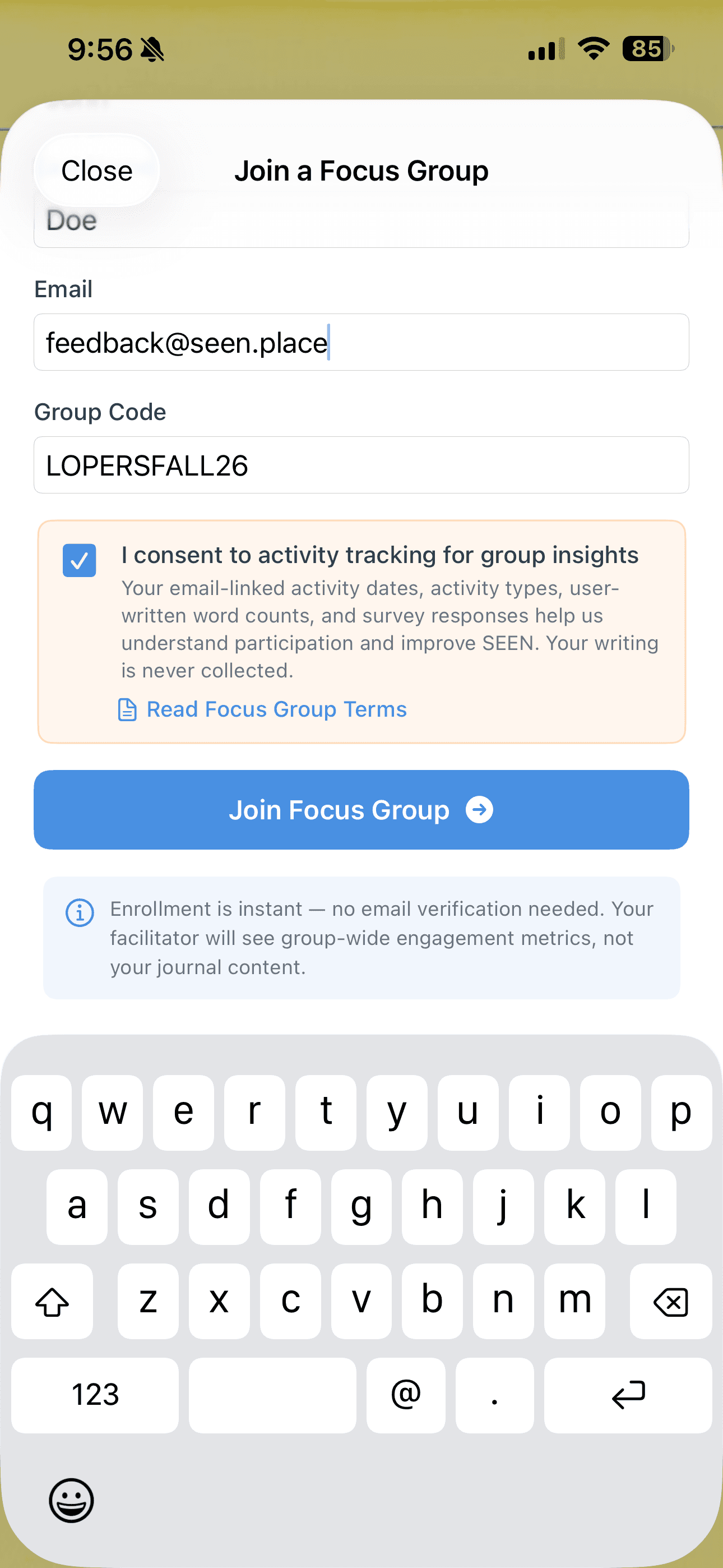
Enter the class code when prompted:
Read the consent information, check the consent box, and tap Join Focus Group. On iPhone v5, the Join a Focus Group option changes to Open Focus Group, and the UNK Fall 2026 banner appears above the main tabs.
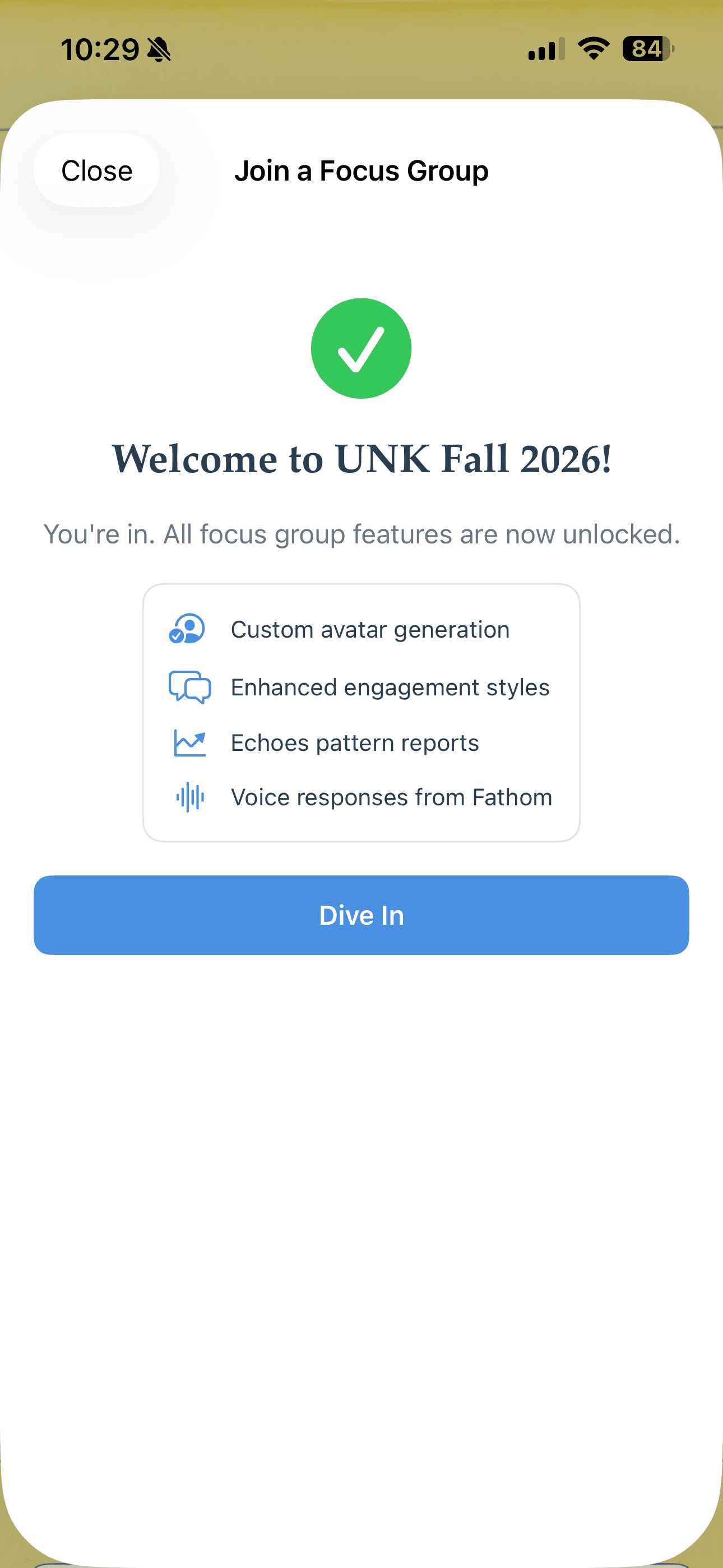
Success! When the confirmation appears, tap Dive In. You are enrolled in the Fall 2026 SEEN:app Focus Group.
4Start Participating
Tap the UNK Fall 2026 banner above the main tabs whenever you want to check your focus group progress. The banner stays available as you move between tabs. You'll use it to:
- Review your consent and participation requirements
- Complete First Impressions after 1 journal + 1 other activity, the Midpoint Check-in at midpoint, and the Final Evaluation during the final week
- See how many meaningful engagements you have completed
Activity completed before joining can still count
When you enroll and consent, qualifying activity completed since the focus group began—even activity from before you entered the class code—will be included.
What counts as meaningful participation?
Complete 10 meaningful engagements during the focus-group period: 6 journal sessions and 4 other activities. A journal session counts whether you use Surface or Deep Dive; Deep Dive is encouraged, but not required. For the other four activities, use Open Space, Talk with Fathom, or up to two Echoes reports. You'll also complete First Impressions, Midpoint Check-in, and Final Evaluation check-ins.
- Journal: finish and save a Surface or Deep Dive journal session.
- Open Space: save a reflection and complete its Fathom exchange.
- Talk with Fathom: exchange at least five messages from you and five from Fathom, then choose End & Save.
- Echoes: open and read a report; no more than two Echoes reports can count.
Premium during the focus group
Joining unlocks the focus-group premium features through October 31, 2026.
Six months free after completion
After completing 6 journal sessions and 4 other qualifying activities, use the focus-group screen to request six months of free Premium. The request is reviewed and fulfilled by the SEEN team.
Getting to Know the App
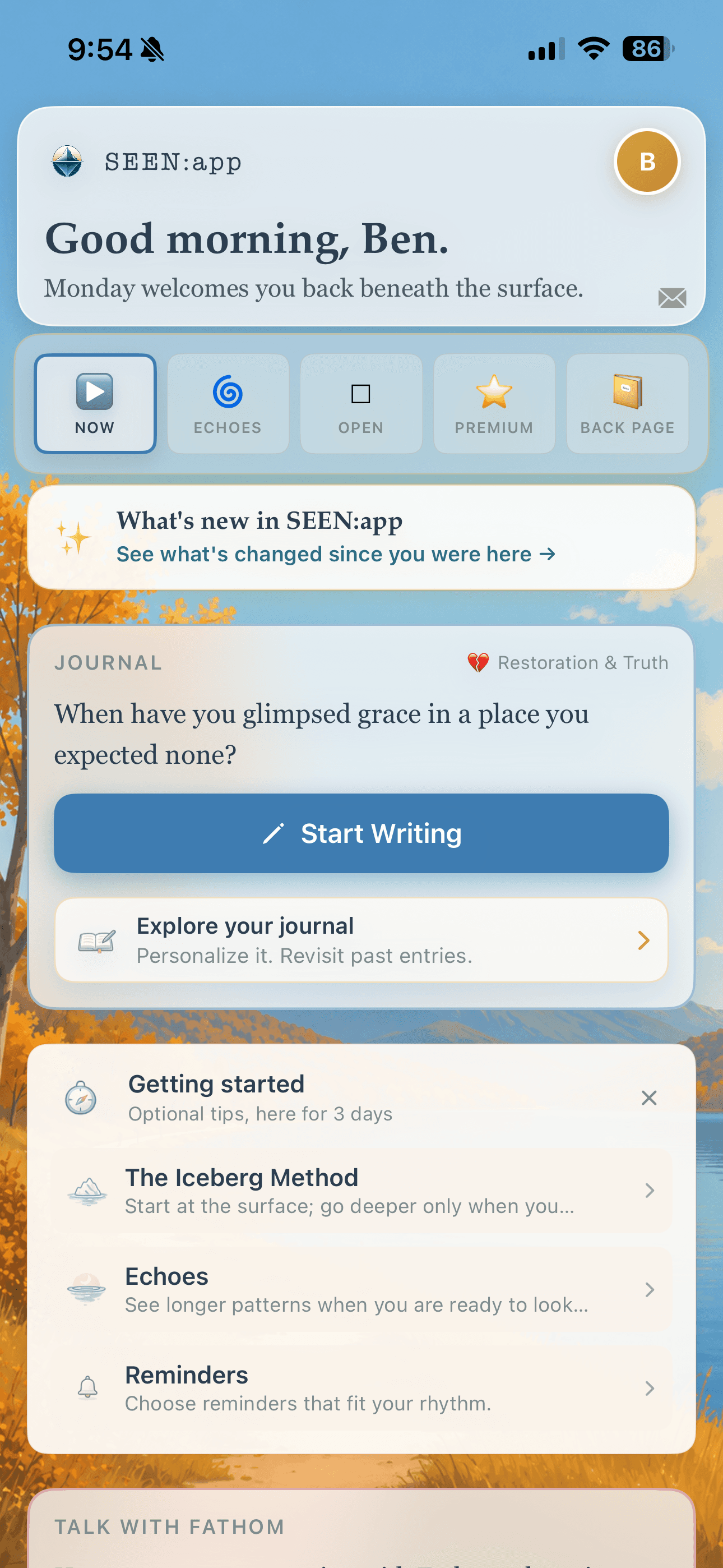
On iPhone v5, the five tabs are Now, Echoes, Open, Premium, and Back Page. Focus Group is a banner, not a tab.
▶ Now Tab
Your daily home base. Here you'll find:
- Daily Journal Prompts — Fresh prompts each day to guide your reflection
- Talk with Fathom — Chat with Fathom in real time, either by voice or text. In voice mode, Fathom's responses will play back to you.
👥 Focus Group
After you join with your class code, the UNK Fall 2026 banner appears above the main tabs and remains there while the study is active. Tap it to view progress and complete the three check-ins.
□ Open Tab
Tap Enter Open Space to collect thoughts and photos. When you are ready, invite Fathom to reflect on what you have gathered. Save your reflection and complete the Fathom exchange for it to count.
🌊 Echoes Tab
Echoes reads across multiple journal entries to surface recurring themes, quiet shifts, and the story taking shape.
- Choose 7, 14, 30, or 90 days, or select a custom date range.
- The selected range must contain at least two completed journal entries.
- Tap Listen for what's echoing to generate one Echoes report for that range.
- Open Archive to revisit reports you already generated.
Read the report for it to count toward your other activities. Up to two Echoes reports can count.
⭐ Premium Tab
Optional premium tools live here, including SEEN:Stories. Stories does not have its own tab and does not count toward focus-group participation.
📝 Back Page
Manage your profile, account, app preferences, and support resources:
- Fathom — Adjust how Fathom engages, speaks, and appears
- Profile — Update your name, pronouns, and other information
- Settings — Notifications, appearance, privacy, and app behavior
- Help & Guide — Reopen the welcome guide and find help
See Step 2 above for the current v5 Back Page screens.
Help with sign-in or joining
Still returning to sign-in or stuck restoring?
On iPhone, confirm that the App Store lists version 5.0.3 or later, install the update, and reopen SEEN:app. If the store only shows Open and lists an older version, check again later. A brief restoration message can appear while your account loads. If it repeats or you cannot reach the app, contact Ben below instead of repeatedly reinstalling or creating another account.
Email code missing or rejected?
Check your spam or junk folder and confirm the email address matches your original SEEN:app account. Request a new code and use only the newest one. If you originally used Sign in with Apple, choose that same sign-in method. Contact Ben if you still cannot get in.
Cannot join, or seeing an old focus group?
Install any available app update and reopen SEEN:app. Look under Back Page → MY SEEN. If Join a Focus Group is still missing or an old group appears, contact Ben; returning participants may need rejoining enabled manually. Sign in with Apple supports Apple's private relay email option.
Sign-out pauses or does not finish?
Update your iPhone app to version 5.0.3 or later and try again with an internet connection. If it still pauses, keep the app installed and send Ben the exact message.
Email ben@seen.place with your full name, class code LOPERSFALL26, phone type, app version, sign-in method, and the message you see. Include your account email if known. Do not send passwords or verification codes.
Questions?
Study, enrollment, rejoining, or app questions: Email Ben Kraker at ben@seen.place.
Class or course questions: Contact Dr. Krista Fritson.